
Epson Workforce Pro WF-7840
3.9Editor score
Prints up to 13×19 inches
AirPrint and Wi-Fi connectivity
500-sheet paper capacity
Large format printers for Mac offer powerful solutions for designers and architects needing wide prints. These machines handle posters, blueprints, and creative projects with ease. Choosing the right one ensures seamless integration with your macOS workflow and reliable output quality.
We evaluated ten top models based on performance, connectivity, and print quality. Each option supports wireless printing and works smoothly with Apple devices. Our analysis covers budget-friendly choices and premium workstations tailored for professional demands.
Each pick highlights key strengths and real-world capabilities for Mac users. Prices and availability change frequently, so verify current details before purchasing. This guide helps you find the ideal printer for your specific large format printing requirements.
3.9Editor score

4.4Editor score

4.1Editor score
As an Amazon Associate we earn from qualifying purchases.
This side-by-side comparison highlights key specifications across all ten models. Review print sizes, connectivity options, and unique features to find the best match for your Mac setup.


The Epson Workforce Pro WF-7840 ranks as an affordable entry point for Mac users needing wide prints. It delivers 13×19 inch capability with wireless convenience and robust paper handling. While rated lower, it meets basic office demands.
We may earn a commission when you buy through this link, at no additional cost to you.
Its PrecisionCore Heat-Free technology ensures fast printouts without excess heat. The 500-sheet capacity reduces reloading needs for busy workspaces. Epson Connect Solutions enable remote printing via apps and AirPrint from macOS devices.
Trade-offs include slower color speeds and modest reliability ratings. Ink costs may add up without subscription plans. Still, for occasional wide-format needs, it balances price and function effectively.
Ideal for small businesses or students needing wide prints. The combination of AirPrint, fax, and high capacity makes it practical. Choose this if budget prioritizes wide-format capability over speed.
Built-in Wi-Fi and AirPrint support let Mac users print directly without cables. Epson iPrint app adds further control for mobile workflows.
The 500-sheet input tray minimizes interruptions during large jobs. This feature suits offices printing frequent spreadsheets or documents.
We may earn a commission when you buy through this link, at no additional cost to you.
The HP OfficeJet Pro 9730 offers vibrant P3 color accuracy ideal for designers. It supports 11×17 prints with fast speeds and AI-driven layout fixes. macOS users benefit from seamless wireless integration.
We may earn a commission when you buy through this link, at no additional cost to you.
P3 gamut ensures screen-accurate prints for mood boards. HP AI removes unwanted content for clean outputs. The 4.3-inch touchscreen simplifies navigation, while Instant Ink trial reduces initial costs.
Trade-offs include the 11×17 limit and reliance on subscriptions. Non-subscribers face higher ink costs. Still, color quality and AI tools make it strong for creative pros.
Best for designers needing accurate wide prints. Its P3 support and HP AI features streamline workflows. Opt for this if color fidelity matters most.
P3 color gamut delivers vibrant, screen-matched results. This ensures designs translate accurately from screen to print.
HP AI removes unwanted web content for clean layouts. This saves paper and time on repetitive documents.
We may earn a commission when you buy through this link, at no additional cost to you.
The Canon imagePROGRAF TC-21M leads with 24-inch wide format quality and high user ratings. Its USB and cloud features simplify Mac workflows. This model balances professional output with usability.
We may earn a commission when you buy through this link, at no additional cost to you.
USB ports enable direct prints without PCs. Cloud tools support remote access. The auto sheet feeder streamlines letter and 11×17 tasks. Users praise its reliability and print quality.
Trade-offs include cost and specialized setup. It suits professionals needing robust wide formats. For Mac users seeking dependable results, it stands out.
Top pick for architects and engineers. Its 24-inch support and cloud tools enhance productivity. Choose this for premium wide-format reliability.
USB flash drive ports allow printing without computers. This reduces network dependencies for quick tasks.
Cloud printing lets Mac users send jobs remotely. This supports hybrid work and office accessibility.
We may earn a commission when you buy through this link, at no additional cost to you.
The Epson EcoTank ET-15000 offers refillable tanks for cost-efficient wide printing. Its 17 ppm speed and high duty cycle suit busy offices. Mac users gain LAN and Wi-Fi flexibility.
We may earn a commission when you buy through this link, at no additional cost to you.
The Supertank system cuts long-term costs. With 4800×2400 dpi, details are crisp. Monthly capacity supports 33,000 pages. Ethernet ensures stable connections for Macs.
Trade-offs include upfront expense and bottle maintenance. Still, high volume and quality justify the investment. Ideal for offices needing consistent output.
Perfect for high-volume office use. Its duty cycle and tank system deliver value. Choose this for reliable, economical wide printing.
Refillable tanks reduce per-page costs significantly. This benefits users with frequent printing needs.
Ethernet and Wi-Fi options ensure stable Mac connections. This prevents print failures during critical jobs.
We may earn a commission when you buy through this link, at no additional cost to you.
The Epson EcoTank Photo ET-8550 excels at vibrant photos with six-color inks. It prints lab-quality results for creative projects. Mac users enjoy wireless ease and low photo costs.
We may earn a commission when you buy through this link, at no additional cost to you.
Claria ET Premium inks deliver vivid colors. Photos cost about 4 cents each. Two years of ink reduce replacements. Wireless printing integrates seamlessly with macOS apps.
Trade-offs include slower text and photo specialization. For mixed office use, it lags. However, for photographers, it shines. Choose this if art or photos matter.
Best for photographers and artists. Its six-color system and low costs excel. Prioritize this for high-quality wide-format photos.
Six inks produce rich gradients and tones. This enhances photo realism and color depth.
Up to two years of ink reduce replacements. This ensures uninterrupted creative work.
We may earn a commission when you buy through this link, at no additional cost to you.
The Epson Expression Photo HD XP-15000 fits desktops with 13×19 borderless prints. It uses six inks for vibrant colors. Mac users enjoy wireless ease and Dash Replenishment.
We may earn a commission when you buy through this link, at no additional cost to you.
Individual inks enhance color range. The rear tray suits cardstock. Auto duplex saves paper. Compact size frees desk space. Ideal for photo studios.
Trade-offs include ink costs and low capacity. Cartridges refill less frequently than tanks. Still, quality and space-saving design stand out.
Best for photo studios or hobbyists. Its compact size and borderless prints appeal. Choose this if space and photo quality are key.
Prints up to 13×19 inches with borders. This enhances photo presentation.
Rear tray supports cardstock and specialty media. This expands creative printing options.
We may earn a commission when you buy through this link, at no additional cost to you.
The Brother INKvestment 6960 delivers 31 ppm speeds with 11×17 support. Wi-Fi Direct simplifies Mac wireless. Its 500-sheet tray suits offices.
We may earn a commission when you buy through this link, at no additional cost to you.
MAXIDRIVE boosts speed. Cloud apps integrate easily. Refresh trial reduces initial ink. PerfectPrint ensures quality. Strong for daily office workflows.
Trade-offs include refresh trials and limited 11×17 range. Still, speed and capacity impress. Choose this for business efficiency.
Best for busy office environments. Its speed and Wi-Fi Direct shine. Prioritize this for fast, reliable wide tasks.
31 ppm black speeds reduce wait times. This supports high-volume printing needs.
Wi-Fi Direct removes network setup. Mac users print directly without routers.
We may earn a commission when you buy through this link, at no additional cost to you.
The HP DesignJet T210 specializes in CAD drawings with 24-inch rolls. It integrates with Mac via Ethernet. HP Click simplifies file handling. Ideal for engineers.
We may earn a commission when you buy through this link, at no additional cost to you.
Precise lines suit technical prints. The cutter saves trimming. HP Click nests files. Ethernet ensures stable data. Low maintenance ink costs add value.
Trade-offs include specialized focus. It suits technical pros over general use. For CAD, it delivers accuracy and efficiency.
Top for architects and engineers. Its CAD optimization and HP Click tools help. Choose this for technical large-format needs.
Delivers accurate technical lines and crisp text. This ensures blueprints and maps are exact.
HP Click nests files and checks errors. This reduces waste and simplifies setup.
We may earn a commission when you buy through this link, at no additional cost to you.
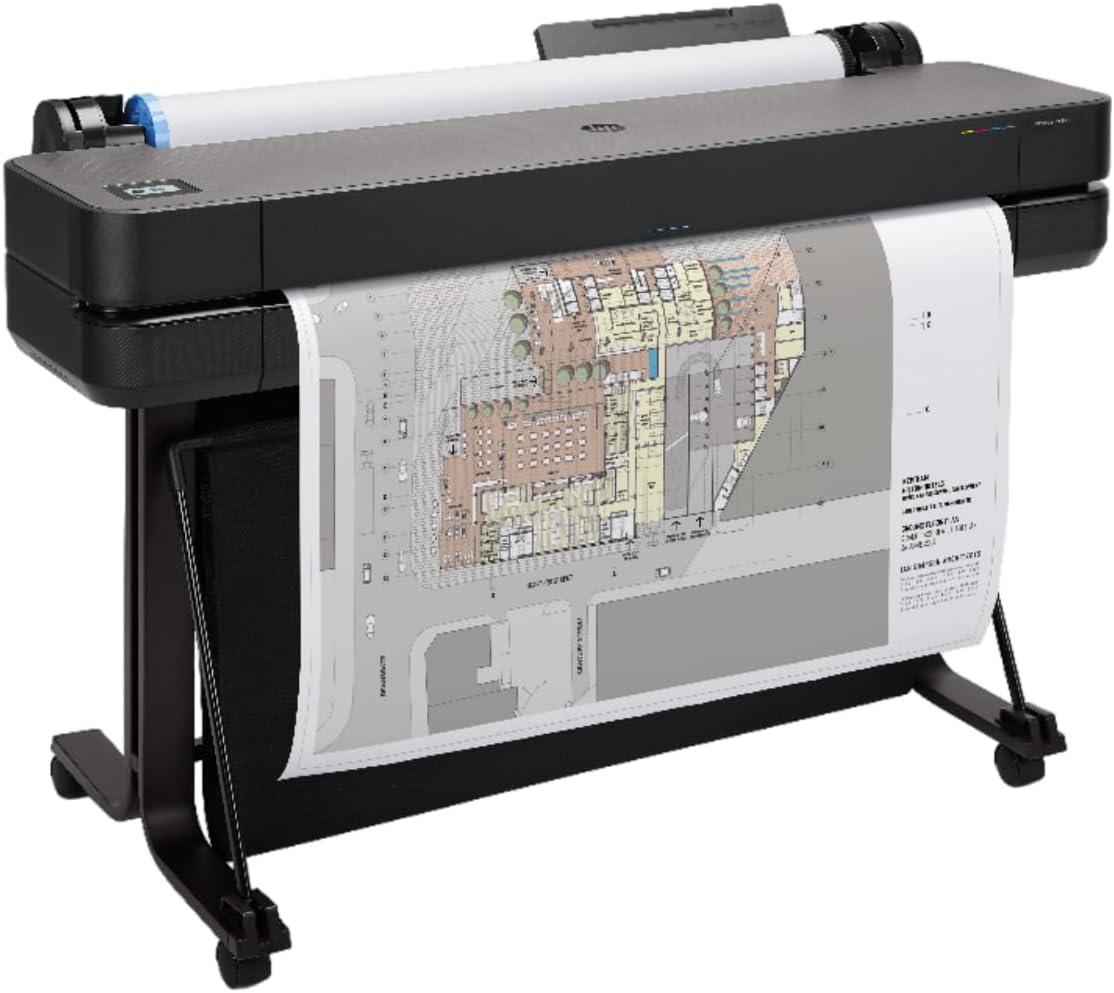
The HP DesignJet T650 offers 36-inch rolls with premium support. Onsite warranty ensures uptime. Mac users gain HP Click and memory. Top for enterprises.
We may earn a commission when you buy through this link, at no additional cost to you.
36-inch prints suit large maps. HP Click aids files. Onsite support reduces downtime. Memory handles complex jobs. Ideal for high-demand environments.
Trade-offs include cost and size. Still, for large formats, it leads. Prioritize this for enterprise needs.
Best for enterprises needing 36-inch prints. Its warranty and speed deliver reliability. Choose this for ultimate wide-format capability.
Onsite warranty minimizes downtime. This ensures continuous production schedules.
36-inch rolls accommodate large-scale projects. This expands possibilities for maps and plans.
We may earn a commission when you buy through this link, at no additional cost to you.
The HP DesignJet T630 delivers 36-inch output with sheet feeds. HP Click simplifies workflows. Macs connect via Ethernet. Ideal for mixed media.
We may earn a commission when you buy through this link, at no additional cost to you.
Roll and sheet switching automates jobs. The cutter saves trimming. Ethernet ensures stable files. This model bridges rolls and sheets effectively.
Trade-offs include cost and setup. However, flexibility suits diverse needs. Choose this for versatile large format.
Best for mixed roll and sheet workflows. Its feeder and cutter automate jobs. Prioritize this for flexible large printing.
Automatic switching between rolls and sheets. This streamlines diverse project types.
HP Click auto-nests files for efficiency. This reduces manual prep and waste.
We may earn a commission when you buy through this link, at no additional cost to you.
Selecting a large format printer requires evaluating dimensions, connectivity, and workflow needs. This guide covers key factors to simplify your choice.
Determine the maximum width you need. Options range from 11×17 to 36 inches. Larger widths suit maps or blueprints.
Choose models matching your typical project dimensions. This ensures compatibility with your output needs.
Look for AirPrint, Wi-Fi, or Ethernet options. These ensure seamless Mac integration. Check software apps for mobile printing.
Prioritize wireless solutions for modern Mac setups. This avoids cabling and enhances flexibility.
Compare tank vs cartridge systems. Tanks reduce long-term costs but cost upfront. Check per-page expenses for your volume.
Select based on total cost of ownership. This balances initial outlay with recurring ink needs.
Evaluate prints per minute and monthly limits. High speeds suit fast offices. Duty cycle defines long-term capacity.
Match speed to workload. This prevents bottlenecks and ensures reliability.
Assess included tools like HP Click or Epson Connect. These streamline file prep. Check cloud integration for remote work.
Choose printers enhancing your workflow. Automation saves time and reduces errors.
Look for roll, sheet, or dual feed options. Auto feeders improve efficiency. Check specialty media support.
Ensure handling suits your media types. This prevents jams and expands output options.
Check warranty length and onsite options. Premium models offer better support. This minimizes downtime.
Prioritize service packages. This protects your investment and ensures uptime.
Measure available desk or floor space. Large plotters need room. Check portability if moving.
Select compact models if space is tight. This avoids clutter and fits your layout.
Set up the printer by connecting it to your Mac via Wi-Fi or Ethernet. Install drivers or use AirPrint to enable printing without extra software.
Manage ink levels regularly. Refill tanks or replace cartridges before running out. Use genuine inks to avoid print quality issues.
Keep the printer in a cool, dry place. Clean print heads periodically and cover when unused. This prevents clogs and maintains performance.
Yes, most modern large format printers support macOS via AirPrint or dedicated drivers. Ensure your model offers Wi-Fi or Ethernet for seamless connection. Check manufacturer sites for macOS compatibility details.
Wide format typically goes up to 13×19 inches. Large format exceeds that with rolls up to 36 inches. Choose wide for posters. Opt for large for maps.
Tanks reduce per-page costs significantly. They require higher upfront investment but last longer. Consider your monthly volume when choosing.
Many models support HP-GL/2 or PDF directly. Use software like HP Click to simplify workflows. Check compatibility with your design tools.
Wi-Fi Direct allows printing without networks. Ethernet adds stability. For offices, a dedicated connection may improve reliability.
Clean print heads regularly and keep firmware updated. Use genuine inks and cover when idle. Run test prints monthly to ensure performance.
We compared ten printers from budget to premium. Top choices include the Canon imagePROGRAF TC-21M and HP DesignJet T650 for wide capabilities.
Prioritize connectivity, ink costs, and size needs. Match these to your Mac workflow for best results. This ensures long-term satisfaction.
Verify current prices and availability before purchasing. Models and support may change. This guide remains your starting point for informed decisions.