
Acer 4-in-1 USB C Hub
4.2Editor score
Dual 4K@60Hz output
100W power delivery
Compact multifunctional design
This guide compares the top Dual HDMI Monitor Adapter options for productivity and multitasking, evaluating performance, compatibility, and value for your
Finding the right Dual HDMI Monitor Adapter can transform your workspace by allowing you to connect two external displays to a single device. Whether you work from home or need extra screen real estate for creative projects, a reliable adapter ensures smooth video output without lag or compatibility issues.
We have carefully evaluated the leading models on the market to bring you a curated list of the most effective solutions available today. Our analysis focuses on video quality, connection stability, ease of use, and how well each adapter integrates with different operating systems and hardware configurations.
Each pick in this guide highlights specific strengths that cater to various user needs, from budget-friendly options to high-performance hubs. Please note that product availability and pricing can change frequently, so always verify the latest details before making your final purchase decision.
4.2Editor score
4.5Editor score

4.5Editor score
The following table provides a side-by-side comparison of all ten top-rated adapters, highlighting key specifications and compatibility details to help you make an informed choice.


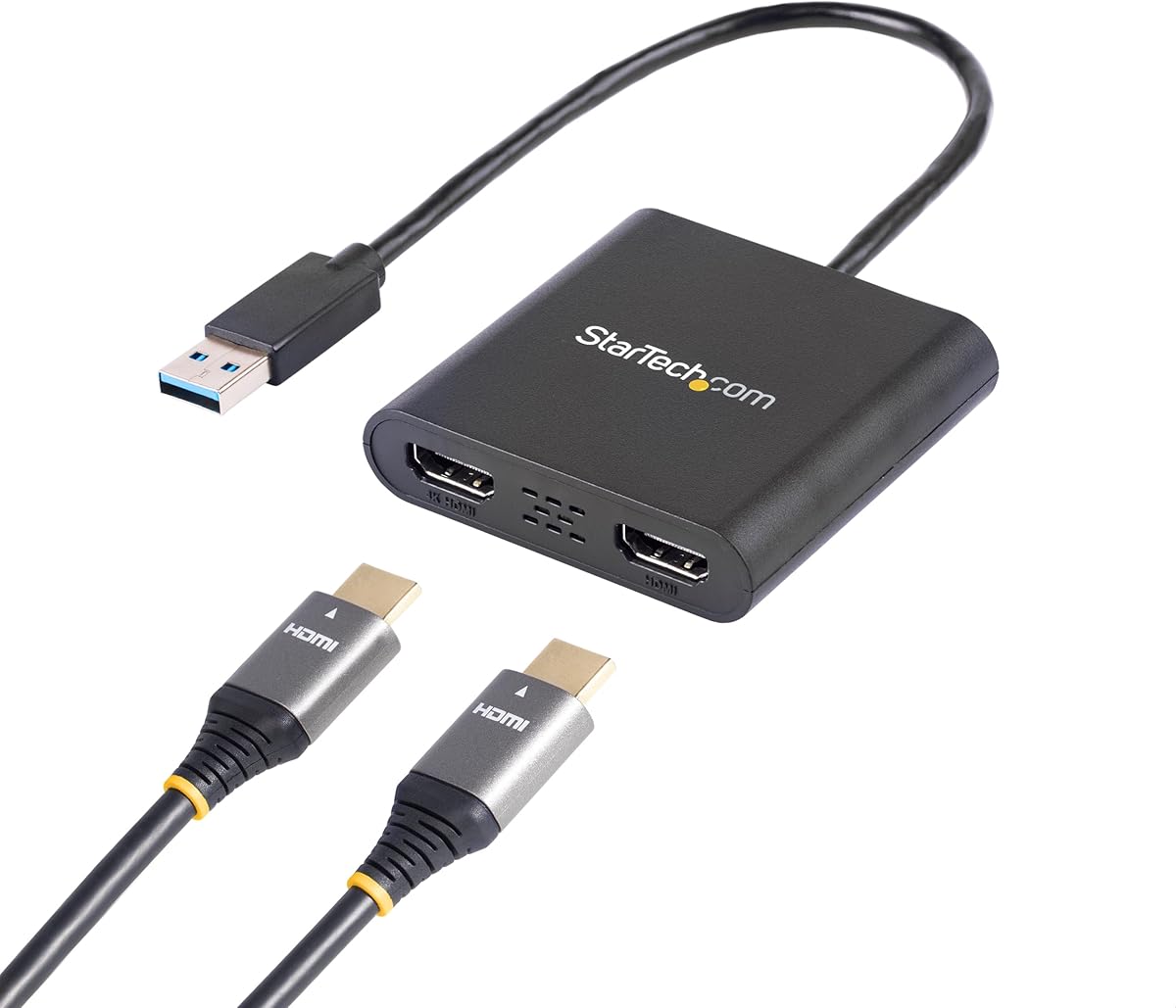
The StarTech USB-A 3.0 to Dual HDMI Adapter is our top choice for Windows users seeking reliable multi-monitor setups. It delivers clear 4K resolution on one monitor while supporting a second screen at 1080p, making it ideal for productivity tasks.
We may earn a commission when you buy through this link, at no additional cost to you.
Its standout quality lies in its robust build and the assurance of a three-year warranty backed by professional technical support. The adapter ensures stable video output through the USB 3.0 port, which is crucial for maintaining a smooth workflow without interruptions.
While it offers excellent performance, the requirement for administrator rights during driver installation may be a hurdle for some users. Additionally, its incompatibility with macOS limits its versatility compared to more universal USB-C hubs.
This adapter is best suited for IT professionals or office workers who rely on a stable dual-screen environment for daily tasks. If you prioritize reliability and support over cross-platform compatibility, this is the recommended choice.
Built for IT professionals, this adapter ensures consistent performance with a strong warranty and 24/5 technical support available.
Designed exclusively for Windows platforms, it integrates seamlessly with Intel, AMD, and Snapdragon X Copilot+ PCs.
We may earn a commission when you buy through this link, at no additional cost to you.
The Acer 4-in-1 USB C Hub stands out as the most budget-friendly option that still delivers impressive dual 4K@60Hz performance. Its versatility makes it a strong contender for users who need more than just video connectivity.
We may earn a commission when you buy through this link, at no additional cost to you.
Key strengths include its ability to support high refresh rates and its integrated 100W power delivery port, which keeps your laptop charged while you work. The inclusion of a USB-A port adds extra utility for data transfer.
However, the included cable is relatively short at 20cm, which might limit placement flexibility for some desk setups. Additionally, Mac users will find that the hub only mirrors displays rather than extending them.
This hub is perfect for budget-conscious users who need fast refresh rates and charging capabilities without spending a fortune. It is an excellent choice for students or remote workers with modern USB-C laptops.
Enjoy smooth visuals with support for dual 4K displays at 60Hz, ideal for multimedia and multitasking.
The 100W PD port ensures your laptop stays powered up even when using multiple external monitors.
We may earn a commission when you buy through this link, at no additional cost to you.
The Selore&S‑Global USB‑C to Dual HDMI Adapter offers a premium experience with its dual 4K@60Hz output and high-speed data transfer capabilities. It is designed for professionals who need high-quality visuals and efficient connectivity.
We may earn a commission when you buy through this link, at no additional cost to you.
Its standout features include robust support for both extended and mirrored modes on Windows and a dedicated 100W power delivery port. The hub ensures that your laptop can charge at 90W while driving two external displays simultaneously.
One potential trade-off is that the package does not include a USB-C power adapter or cable, meaning you must use your own to achieve full charging speeds. Mac users also face limitations with display extension.
This adapter is best suited for power users who demand high resolution and speed from their docking solution. If you need a premium hub that delivers on performance and design, this is the top choice.
Dual 4K@60Hz output ensures your content looks sharp and vibrant across both external monitors.
Fast USB-A transfers and 100W PD charging allow you to manage files and power without interruptions.
We may earn a commission when you buy through this link, at no additional cost to you.
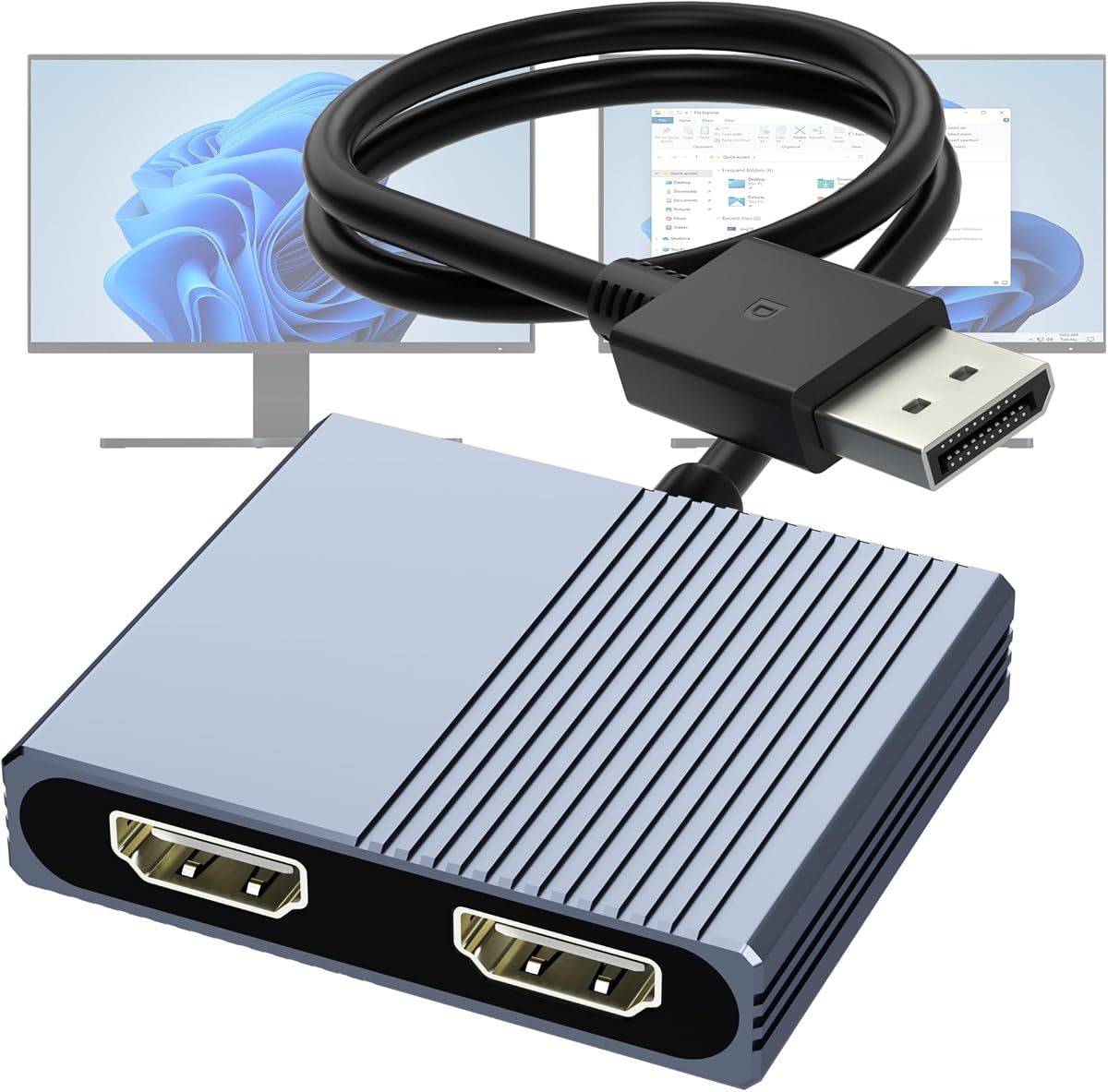
This DisplayPort to Dual HDMI Adapter is engineered specifically for desktops and laptops with dedicated graphics cards that feature DisplayPort outputs. It excels at providing dual 4K@60Hz displays when other USB adapters might struggle.
We may earn a commission when you buy through this link, at no additional cost to you.
Its key strengths include the use of MST technology to extend displays rather than just mirror them, along with an anti-interference design that ensures stable signal transmission. This is crucial for maintaining image quality across two screens.
The need for an external power adapter is a minor inconvenience for users who want to keep their workspace clutter-free. Additionally, compatibility is limited to devices with a dedicated DisplayPort source.
If you have a desktop PC or a high-end laptop with a DP port, this adapter offers the performance you need for multi-screen workstations. It is a specialized tool for users who prioritize resolution and stability.
Built to connect directly to a DisplayPort source, ensuring high bandwidth for dual 4K displays.
Allows you to extend your desktop across two monitors seamlessly without needing extra drivers.
We may earn a commission when you buy through this link, at no additional cost to you.
The WAVLINK HDMI Splitter is designed to bridge the gap between Windows and macOS systems, offering a solution for extending displays on both platforms. It supports up to 2K resolution and is capable of mirroring or extending screens as needed.
We may earn a commission when you buy through this link, at no additional cost to you.
Key strengths include its broad compatibility across multiple operating systems and its inclusion of a 24-month warranty. This makes it a reliable option for teams with mixed device environments.
However, it requires driver installation which can be a hurdle if you are using a managed work laptop. It is also not recommended for gaming or graphic-intensive tasks due to bandwidth limitations.
This adapter is best for office environments where flexibility and platform independence are key. If you need a solution that works across both Mac and Windows, this is a solid middle-ground choice.
Works with both Windows and macOS systems, making it versatile for shared workspaces.
Allows you to set up three separate screens including your laptop for maximum productivity.
We may earn a commission when you buy through this link, at no additional cost to you.
The OREI SplitExtend HDMI Splitter is tailored for users looking to create a 3-screen setup by connecting two external monitors to a single source. It supports 4K resolution and offers flexibility with both USB-C and USB-A connectivity options.
We may earn a commission when you buy through this link, at no additional cost to you.
Its main advantages include the ability to extend screens effectively and the inclusion of a 1-year manufacturer support plan. The adapter is designed to work seamlessly with modern laptop configurations.
However, it requires an Intel i5 processor or higher for optimal performance, which may exclude some older machines. The necessity for driver installation is another consideration for users seeking plug-and-play simplicity.
This splitter is ideal for office workers who need to expand their workspace quickly. If your system meets the processor requirements, it provides a straightforward path to dual external monitors.
Features both USB-C and USB-A connections to fit a wide range of laptop models.
Designed to mirror or extend displays, offering versatile options for different workflows.
We may earn a commission when you buy through this link, at no additional cost to you.
The Selore USB C Docking Station transforms a single port into a full workstation with dual HDMI outputs and additional USB ports. It is designed to handle high-resolution displays while keeping your laptop charged.
We may earn a commission when you buy through this link, at no additional cost to you.
Its key strengths include the 8-in-1 design that offers versatile connectivity, including an SD card slot for media workflows. The 100W power delivery ensures that you can work for long periods without worrying about battery life.
One limitation is that Mac users can only mirror displays, and the docking station requires a Thunderbolt or full-featured USB-C port to function. This restricts its use to newer and more powerful devices.
This docking station is perfect for home office users who need a comprehensive connectivity hub. If you require multiple ports and dual screens, this unit covers most of your daily connectivity needs.
Offers a wide array of ports including HDMI, USB, and SD card slots for diverse needs.
The 100W power delivery port keeps your laptop charged even while driving two external displays.
We may earn a commission when you buy through this link, at no additional cost to you.
This 4K HDMI Splitter is a straightforward solution for users who need to display the same content on two screens simultaneously. It supports 4K resolution and includes audio synchronization, ensuring a seamless viewing experience.
We may earn a commission when you buy through this link, at no additional cost to you.
Its key advantages are its simplicity and lack of driver requirements, making it ready to use out of the box. The device is ideal for presentations or settings where both screens need to show identical content.
However, it does not support extended display modes, which limits its utility for productivity tasks that require different screens. It is also a basic option without additional ports for data or charging.
This splitter is best suited for casual users or small businesses that need to mirror content for an audience. If you do not need to extend your desktop, this is an affordable and effective tool.
No software installation required, allowing you to get started immediately with your dual display setup.
Ensures that audio is synchronized with video output across both connected devices.
We may earn a commission when you buy through this link, at no additional cost to you.
This DisplayPort to Dual HDMI Adapter is built for durability and performance, featuring an aluminum alloy housing and gold-plated ports. It allows you to extend your desktop across two monitors using MST technology.
We may earn a commission when you buy through this link, at no additional cost to you.
Its standout quality is the rugged construction that ensures long-lasting connectivity and stable signal transmission. It is particularly well-suited for desktop PCs and laptops with dedicated graphics cards.
The limitation to DisplayPort inputs and the lack of support for extended modes on macOS mean it is not a universal solution. However, for those with compatible hardware, it offers excellent stability.
This adapter is ideal for power users who need a reliable and durable connection for extended display setups. If you use a desktop or high-end laptop, this hub delivers the quality you need.
Aluminum housing and gold-plated connectors ensure durability and protect against wear over time.
Enables you to extend two different monitors simultaneously for a more efficient workflow.
We may earn a commission when you buy through this link, at no additional cost to you.
The UANTIN 6-in-1 USB C Hub is a compact and driver-free solution for users seeking dual 4K@60Hz outputs alongside additional USB ports. It is designed to be portable and easy to use for daily tasks.
We may earn a commission when you buy through this link, at no additional cost to you.
Its key strengths include its slim profile which fits easily in a laptop bag and its inclusion of multiple USB-A ports for connecting peripherals. The 100W power delivery ensures that your laptop stays powered during use.
While the USB-A ports are 2.0 speed, which is slower than USB 3.0, this is acceptable for basic peripherals like mice and keyboards. Mac users should note that display extension is limited.
This hub is perfect for travelers and hybrid workers who need a portable setup that supports multiple monitors. If you prioritize portability and simplicity, this hub offers great value.
Slim and lightweight design makes it easy to carry for hybrid work between office and remote setups.
Plug and play functionality ensures quick setup without the need for software installation.
We may earn a commission when you buy through this link, at no additional cost to you.
Selecting the right adapter requires understanding your specific hardware and usage needs. This guide breaks down the essential factors to consider before making a purchase.
Determine whether your device has a USB-A, USB-C, or DisplayPort output as this dictates the type of adapter you need. USB-C hubs with DisplayPort Alternate Mode are becoming standard for modern laptops while older devices may rely on USB-A adapters.
Always check your laptop ports before buying to ensure physical compatibility and avoid needing additional dongles.
Consider the resolution and refresh rate your monitors support as not all adapters can handle dual 4K at 60Hz. Some budget models may only support 30Hz which can cause screen tearing during video playback.
Prioritize adapters that match your monitors capabilities to ensure a smooth and clear viewing experience.
Verify that the adapter supports your operating system as some models only work with Windows or require specific drivers. Mac users should look for USB-C hubs that support DisplayPort Alternate Mode if they need extended displays.
Ensure the product documentation explicitly states compatibility with your OS to avoid functionality issues.
Check if the adapter includes Power Delivery functionality so you can charge your laptop while using it. Hubs with 100W PD ports allow you to connect fewer cables and keep your workspace tidy.
Always confirm the wattage matches your laptops requirements to ensure it charges effectively during use.
Evaluate whether you need extra ports like USB data ports or SD card slots alongside your video outputs. A hub with extra connectivity can save you from buying separate peripherals and reduce cable clutter.
Look for adapters that offer a good mix of ports to meet your daily connectivity needs.
Invest in an adapter with a robust build quality that features durable materials like aluminum or reinforced connectors. A longer warranty period indicates the manufacturer confidence in their product reliability.
Check reviews for build quality feedback to ensure the adapter can withstand daily plugging and unplugging.
Determine if the adapter requires driver installation as plug-and-play options are often more convenient for users. Some adapters need specific software to enable extended display modes which might be problematic on managed devices.
If you prefer simplicity, choose a model that works immediately without requiring any software installation.
Compare the price against the features offered to ensure you are getting the best value for your money. While expensive hubs offer more ports some affordable options still deliver excellent performance for basic needs.
Focus on finding a balance between cost and features that aligns with your specific use case.
Connect the adapter to your device first ensuring the port is fully seated before attaching any cables. If your adapter requires an external power source plug it in before connecting the HDMI cables to ensure stable signal transmission.
Once connected navigate to your display settings to arrange the monitors either in extended or mirrored mode. Adjust the resolution and refresh rates to match your monitors specifications for the best visual experience.
To maintain the longevity of your adapter handle it with care and avoid bending the cables excessively. Regularly check the connectors for dust and wipe them gently to ensure a clean connection for consistent performance.
Yes but you must choose an adapter that supports macOS DisplayPort Alternate Mode. Be aware that many adapters only mirror the screen on Macs rather than extending the desktop across two monitors.
Some adapters are plug-and-play while others require specific drivers to function correctly. Always check the product details before buying if you plan to use a managed work computer where driver installs may be restricted.
Bandwidth limitations of your connection port may restrict dual 4K output. Ensure your laptop has a USB-C with DisplayPort Alternate Mode or a high-end DisplayPort output to support dual 4K at 60Hz.
Mirror mode shows the same image on both screens while extend mode allows you to have different content on each screen. Extend mode is ideal for productivity while mirror mode is useful for presentations.
High-end adapters support 4K at 60Hz but budget models may be limited to 30Hz. Check the specifications carefully to ensure you are getting the refresh rate you need for smooth visuals.
Yes as long as the hub has proper safety features and power delivery to prevent overheating. Look for adapters with temperature control and reliable warranties to ensure safe operation.
Some adapters allow you to connect two external monitors plus your laptop screen for a three-screen setup. Verify the adapter supports extended display modes to use this configuration effectively.
You should use an HDMI 2.0 cable to ensure compatibility with higher resolutions and refresh rates. Standard HDMI cables may not support 4K at 60Hz so check the packaging specifications.
We hope this guide has helped you find the perfect adapter for your needs by comparing the top ten options available. Whether you prioritize budget or performance there is a solution that fits your specific workflow.
When making your decision prioritize compatibility and performance to ensure your setup remains stable and efficient. Consider future needs like additional ports or higher resolutions to avoid needing an upgrade soon.
Remember that prices and availability can change so verify the current details before placing your order. With the right adapter you can transform your workspace into a highly productive dual-monitor environment.