
USB3.0 KVM Switch HDMI 4K@60Hz for 4 Computers Share 1 Monitor
4.2Editor score
Adaptive EDID for display detection
Includes HDMI and USB cables
Front panel and remote switching
This guide compares the top 10 KVM Switch for 4 Computers to help you find the best solution for sharing monitors and peripherals across multiple workstations
Managing multiple computers on a single desk can become chaotic without the right hardware. A KVM switch for 4 computers allows you to control four distinct systems using one set of peripherals and display. This setup keeps your workspace organized while maximizing productivity for professionals and enthusiasts alike.
We have evaluated ten leading models based on resolution support, switching methods, and peripheral compatibility. Each product offers unique features like 4K or 8K video output and USB 3.0 connectivity. Our analysis focuses on real-world usability and build quality to help you make an informed decision.
Each pick in this list highlights specific strengths such as dual monitor support or premium build materials. You will find detailed breakdowns of ports, remote controls, and EDID emulation capabilities. Please note that availability and specific model numbers may change over time on retailer sites.
4.2Editor score
4.8Editor score

4.7Editor score
This side-by-side comparison highlights the key specifications and capabilities of each model. Use this table to quickly identify which switch meets your specific resolution and port requirements for your multi-PC setup.


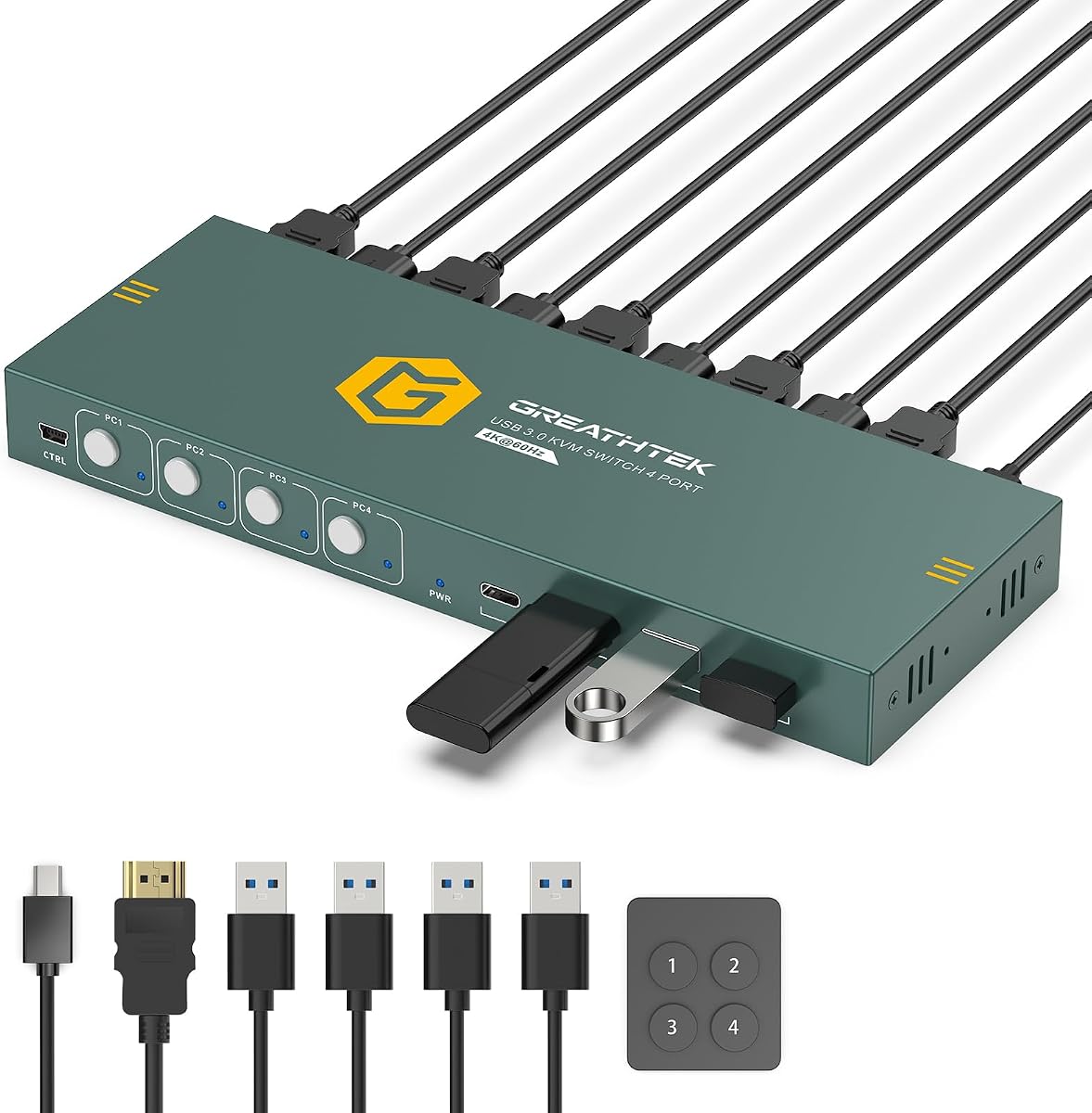
This HDMI KVM switch stands out as the top recommendation for users managing four computers with a single monitor. It delivers sharp 4K video at 60Hz and supports USB 3.0 peripherals for fast data transfer. The included wired remote makes switching between hosts intuitive and accessible from your desk.
We may earn a commission when you buy through this link, at no additional cost to you.
The unit features three USB-A ports and one USB-C port to share devices like printers and webcams across all systems. EDID Adaptive technology ensures your monitor retains settings when you switch PCs so windows do not jump around. Front panel buttons offer a backup method for switching without relying on the remote.
While it lacks keyboard hotkey switching which some advanced users might prefer the physical controls are reliable and clear. The requirement for an external power supply ensures stable performance but adds another cable to manage under your desk. Overall it offers a complete package with cables included for immediate use.
This switch is ideal for office workers or home users who need to frequently access multiple machines without cluttering their workspace. If you prioritize video quality and easy peripheral sharing this model provides the best balance of features and usability. It ensures your workflow remains smooth and organized throughout the day.
The HDMI 2.0 interface supports 18Gbps bandwidth for smooth 4K visuals at 60Hz without lag.
USB 3.0 ports allow you to share high speed storage and input devices across four systems easily.
We may earn a commission when you buy through this link, at no additional cost to you.
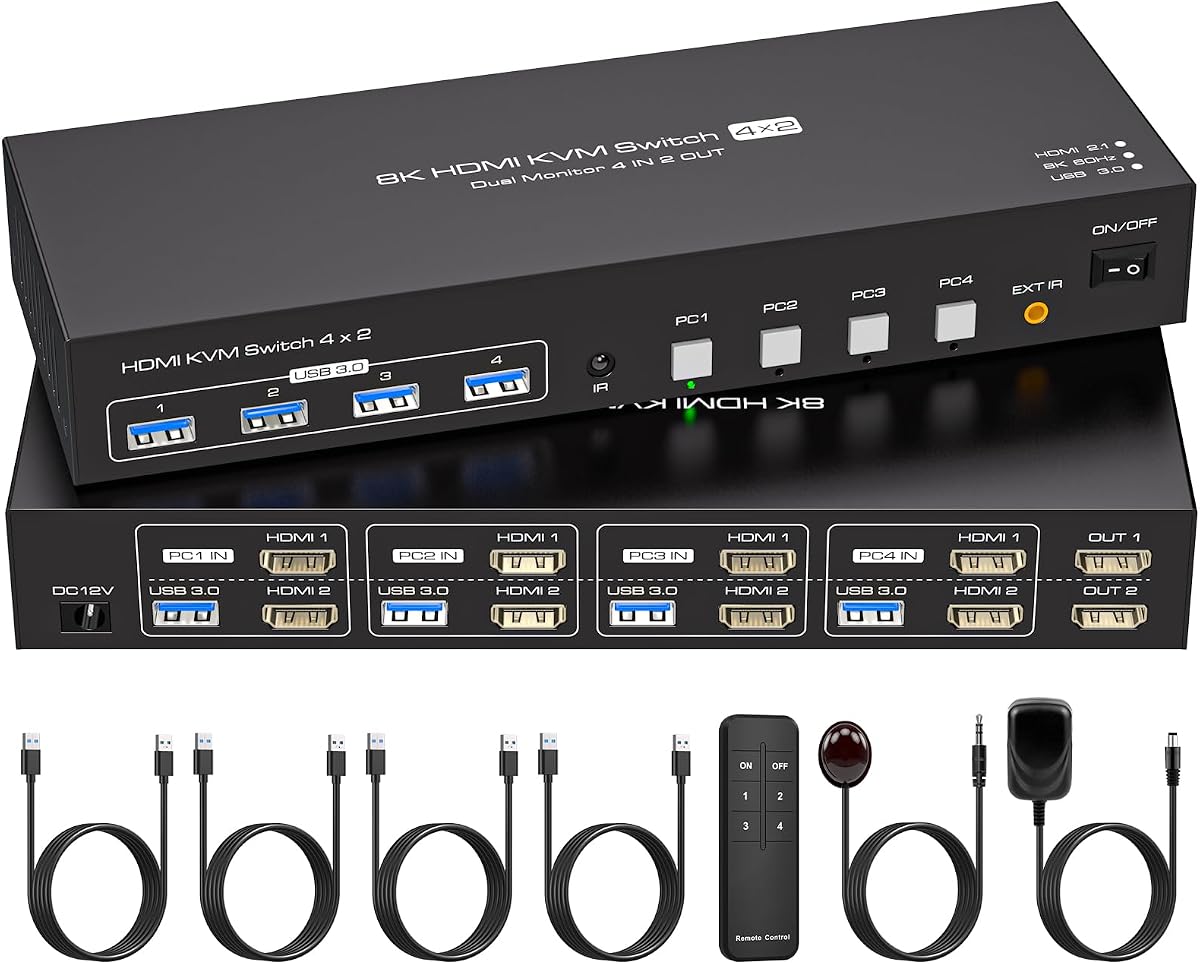
This dual monitor KVM switch is a powerful choice for users needing to extend their workspace across two screens. It supports resolutions up to 8K at 60Hz and offers both copy and extend modes for flexible viewing. The build quality is robust and it handles switching between four computers with ease.
We may earn a commission when you buy through this link, at no additional cost to you.
EDID emulation is a standout feature that preserves your desktop layout when you switch between different computers. This means your windows stay in place and do not reset or rearrange every time you toggle the input. The infrared remote allows you to change sources without reaching under the desk.
A key limitation is that each computer must have two HDMI ports to drive two monitors through this switch. This requirement might limit compatibility with laptops or systems with limited video outputs unless adapters are used. It also lacks hotkey switching which some power users rely on for speed.
If you need a dual monitor solution for productivity or monitoring tasks this switch delivers excellent performance. It is well suited for office environments where maintaining screen real estate is critical. Just ensure your computers have the necessary ports before purchasing to avoid compatibility issues.
Copy mode duplicates screens while extend mode allows different content on each monitor for multitasking.
Support for 8K at 60Hz ensures future proofing for high fidelity displays and graphics work.
We may earn a commission when you buy through this link, at no additional cost to you.
The UGREEN HDMI KVM switch offers exceptional connectivity with six USB ports for sharing peripherals across four computers. It supports 4K video at 60Hz and includes a wired controller for convenient source selection. The build is solid and it supports both Windows and Mac operating systems seamlessly.
We may earn a commission when you buy through this link, at no additional cost to you.
Its EDID emulation feature is highly beneficial for preventing display flicker or resolution drops when switching sources. By holding the switch button you can enable this mode to maintain consistent monitor settings across all connected PCs. This feature alone makes it a strong contender for users who hate reconfiguring displays.
Users must connect the power adapter for stable operation which is standard for active KVM switches. Also note that hotkey switching is not supported so you will rely on physical buttons or the controller. The USB cables provided are essential for data transfer and must be connected properly.
This unit is excellent for users who need to share printers hard drives and other USB devices frequently. The high number of ports reduces the need for additional hubs and keeps your desk tidy. If you value connectivity and stable video performance this switch is a top choice.
Four USB 3.0 ports plus two USB 2.0 ports allow diverse device sharing across four systems.
EDID emulation ensures your monitor does not disconnect or change settings unnecessarily during switches.
We may earn a commission when you buy through this link, at no additional cost to you.
This premium KVM switch is designed for advanced setups needing to share four monitors across four computers. It combines HDMI and DisplayPort inputs for versatility and includes an audio jack for sound output. The unit is built to handle high resolution video and complex workstation configurations.
We may earn a commission when you buy through this link, at no additional cost to you.
The wired control unit is upgraded for better feel and allows you to hide the main unit under a desk. You can set the system to copy or extend modes to maximize your screen real estate efficiently. This is particularly useful for video editing or financial trading environments.
Setup requires each computer to have specific port combinations which can be challenging for older systems. The cables needed are specific and you must ensure compatibility to achieve the advertised resolution speeds. It is a complex device but worth it for serious users with demanding hardware.
If you need to manage four screens across multiple machines this switch provides a unified solution. It supports high refresh rates and resolutions for smooth visual performance. Ensure you have the right ports and cables before purchasing to avoid integration issues.
Supports four monitors at once allowing extensive screen real estate for professional multitasking.
Built-in audio jack allows sound output from the active computer without extra hardware.
We may earn a commission when you buy through this link, at no additional cost to you.
This switch is optimized for high performance gaming and video editing with support for 4K at 120Hz. It uses HDMI 2.1 to deliver smooth visuals and includes an IR extension receiver for remote switching. The build is functional and it provides reliable data transfer for peripherals.
We may earn a commission when you buy through this link, at no additional cost to you.
You can use the IR receiver to place the switch in a hidden location while keeping the remote accessible. The EDID function helps maintain display settings so you do not lose resolution when changing computers. It also includes a 24 month warranty for peace of mind.
Note that docking stations are not supported so you must connect PCs directly to the switch. Also each PC must have an HDMI port so laptops may need adapters for compatibility. The setup is straightforward but requires specific hardware to unlock the full high refresh rate potential.
Gamers and creators who need high refresh rates will find this switch valuable for their workflow. It ensures your monitor runs at optimal speeds without compromising on switching convenience. If you need 4K120Hz this is a solid affordable option.
Supports 4K at 120Hz for smooth motion and fast response times in gaming and editing.
IR extension receiver allows you to place the switch out of sight while keeping control easy.
We may earn a commission when you buy through this link, at no additional cost to you.
This model features a premium aluminum body that offers excellent durability and heat dissipation for long term use. It supports 8K resolution and includes a desktop controller for easy switching between computers. The compact design fits well on tight desks without taking up too much space.
We may earn a commission when you buy through this link, at no additional cost to you.
While it supports high resolution video it lacks EDID emulation which can lead to flicker when switching sources. Users must ensure their monitors and PCs are compatible to avoid connection issues. Also cables are not included so you need to purchase them separately for setup.
The controller makes it easy to switch sources without touching the main unit on your desk. It is a reliable unit for those who value build quality and future proof resolution support. Just be aware of the missing EDID feature and cable requirements before buying.
This switch is ideal for users who need a durable high resolution solution and do not mind buying cables separately. The aluminum casing ensures it can withstand daily use in a busy office environment. If you prioritize hardware quality this is a strong choice.
The metal chassis provides durability and better heat management than plastic alternatives.
Support for 8K ensures compatibility with next generation monitors and video content.
We may earn a commission when you buy through this link, at no additional cost to you.
This KVM switch offers a complete kit including HDMI and USB cables for immediate setup without extra purchases. It supports 4K video and includes a wired remote keypad with clear numbered labels for easy identification. The adaptive EDID ensures your display recognizes the correct input on switching.
We may earn a commission when you buy through this link, at no additional cost to you.
The remote keypad makes it easy to identify which computer is active through LED indicators. This reduces confusion when managing multiple systems on a shared desk. It supports three USB 3.0 ports which is sufficient for most standard peripherals like keyboards and printers.
It does not support hotkey switching so you must use physical buttons or the remote to change sources. This might slow down power users who rely on keyboard shortcuts for rapid switching. However for general office use the physical controls are efficient and reliable.
This unit is perfect for users who want a ready to use kit without hunting for cables. The remote keypad adds a layer of convenience that simplifies switching between computers. If you need a hassle free setup this model delivers great value and performance.
Includes necessary HDMI and USB cables to start using the switch immediately after unboxing.
Numbered remote keypad with LEDs ensures you always know which computer is currently active.
We may earn a commission when you buy through this link, at no additional cost to you.
The Hearvo switch includes a lifetime protection plan which provides long term reassurance for your purchase. It supports 4K at 60Hz and is HDCP 2.2 compliant for secure streaming of protected content. The package includes everything needed for setup including an HDMI cable and anti-slip pads.
We may earn a commission when you buy through this link, at no additional cost to you.
Adaptive EDID ensures stable video transmission by automatically optimizing display settings for your monitor. This prevents screen flicker and resolution issues when switching between computers. The anti-slip pads keep the unit stable on your desk even if the surface is slightly uneven.
It supports standard HDMI and USB 3.0 devices but lacks advanced features like hotkey switching. You must use the front panel or the included wired remote to change sources. This simplicity makes it easy for general users to understand and operate quickly.
If you value long term security and a complete setup package this switch is a strong choice. The lifetime protection plan adds significant value beyond the hardware itself. It is a reliable option for users needing secure and stable video switching.
Includes a protection card that offers peace of mind and support for the lifetime of the product.
HDCP 2.2 compliance allows you to watch protected streaming content without interruptions.
We may earn a commission when you buy through this link, at no additional cost to you.
This KVM switch allows four computers to share three monitors using a combination of HDMI and DisplayPort inputs. It supports 8K resolution and 4K at 144Hz for high performance visual work. The package includes a power adapter and USB cables to simplify initial setup.
We may earn a commission when you buy through this link, at no additional cost to you.
To achieve the triple monitor setup each computer must support multiple display outputs and connect via two DP ports and one HDMI port. This requirement is specific and ensures that the switch can route signals correctly to all three screens. It is ideal for advanced users with capable hardware.
The wired remote makes it easy to change active computers without reaching under the desk. However the cabling is complex and you must organize cables carefully to avoid a cluttered workspace. It is a robust solution for professional environments needing extensive screen real estate.
If you need to share three monitors across multiple machines this switch provides a unique capability. It delivers high resolution and fast refresh rates for professional workflows. Ensure your computers support the required ports before purchasing to avoid connectivity issues.
Allows four computers to share three monitors for expanded workspace and multitasking capabilities.
Support for 4K at 144Hz and 8K ensures smooth visuals for creative and gaming tasks.
We may earn a commission when you buy through this link, at no additional cost to you.
This dual monitor KVM switch features EDID emulation to lock your screen layout when switching between computers. It supports 4K at 120Hz and uses HDMI for reliable video transmission. The unit is built with durable metal materials and includes an IR remote for convenient control.
We may earn a commission when you buy through this link, at no additional cost to you.
EDID emulation is a vital feature that keeps your window order intact and prevents reordering when toggling sources. This improves workflow continuity and saves time reorganizing your desktop every time you switch machines. The copy and extend modes give you flexible viewing options for different tasks.
Each computer must have two HDMI ports to connect to the two monitors which can be challenging for some laptops. You may need active adapters if your system lacks sufficient ports. It is a powerful unit but requires specific hardware to function correctly.
If you need a dual monitor setup with reliable performance this switch delivers on its promises. The metal build ensures long term durability and the EDID feature adds significant convenience. It is a great choice for power users managing complex dual screen workflows.
EDID emulation keeps windows in their original positions so your desktop does not reset during switches.
Support for 4K at 120Hz provides smooth motion and detailed visuals for demanding applications.
We may earn a commission when you buy through this link, at no additional cost to you.
Choosing the right KVM switch requires understanding your resolution needs and port configurations. This guide outlines the key factors to consider before purchasing a multi-PC switch.
Your monitor and graphics card determine the maximum resolution the KVM switch must support. Models vary from 4K at 60Hz to 8K or 4K at 120Hz. If you edit video or game select a model with HDMI 2.1 or DisplayPort to ensure smooth visuals.
Always verify that both your monitor and computers support the resolution you need. A switch with high specs will not help if your PCs are limited to lower resolutions.
Check that each computer has the necessary HDMI or DisplayPort outputs to connect to the switch. Some models require two ports per PC for dual monitor setups. Also count the USB ports to ensure you can share all your peripherals like keyboards and printers.
Most switches include three or four USB ports but some offer more for additional storage devices. Ensure the USB version matches your needs for fast data transfer speeds.
Physical buttons on the front panel are the most common method for switching sources. Some models include wired remotes or IR remotes for easier access. Others support hotkey switching which allows keyboard shortcuts to toggle between computers quickly.
Hotkey switching is convenient but not all models support it. Decide if physical controls are enough for your workflow or if you need keyboard shortcuts for speed.
EDID emulation helps your monitor remember settings when you switch between computers. Without it your screen may flicker or reset window layouts every time you change inputs. This feature is highly recommended for maintaining a stable desktop environment.
Look for switches that explicitly mention EDID emulation or emulation in their specifications. This small detail can save you significant frustration during daily use.
Metal casings like aluminum offer better durability and heat dissipation than plastic models. This is important for switches that will be used constantly in an office environment. A sturdy build ensures the ports and buttons remain reliable over time.
Check customer reviews for signs of loose connections or overheating. A well built unit should feel solid and have no wobble when you press the buttons.
Some packages include HDMI and USB cables while others require you to buy them separately. This affects the total cost and setup time. Also check if a power adapter is included since active switches need external power.
Having all cables in the box makes setup faster and ensures compatibility with the switch. If cables are missing verify that your existing cables are high quality enough for your needs.
Most KVM switches are plug and play with Windows Mac and Linux systems. However some may have specific requirements for older operating systems. Verify that the switch works with your current OS to avoid driver issues.
Drivers are rarely needed for basic functionality. If a model requires software installation it might complicate your setup unnecessarily.
A warranty provides peace of mind in case the unit fails or has defects. Some brands offer up to 24 months or lifetime protection plans. Reliable support ensures you can get help if you face setup or compatibility issues.
Check the return policy on retailer sites in case the switch does not fit your setup. Good customer service is a valuable asset when dealing with technical hardware.
To set up your KVM switch connect each computer to the switch using HDMI and USB cables. Ensure that every computer has its own dedicated cables connected to the correct ports. Then connect your monitor and keyboard to the shared output ports on the switch.
After connecting power the unit using the included adapter. Wait for the LED indicators to stabilize before switching between computers. Use the front buttons or remote to select the desired PC and verify that your peripherals are working correctly.
Care for your switch by avoiding excessive force on the cables and ports. Keep the area around the switch clean to prevent dust from blocking ventilation slots. If you notice connection issues try reseating the cables or restarting the connected computers to refresh the signal.
Most KVM switches are plug and play and do not require driver installation. They work automatically with Windows Mac and Linux operating systems. If a specific model requires software it will be noted in the product description.
Some KVM switches do not support docking stations so check the product description before purchasing. If your computer uses a dock you may need to connect directly to the PC for stable performance. Using a dock can sometimes cause connection issues with active switches.
EDID emulation allows the switch to store your monitor's settings so they do not reset when switching computers. Without it your screen may flicker or windows might rearrange every time you change inputs. This feature ensures a stable and seamless transition between systems.
Check your monitor's specifications to see the maximum resolution and refresh rate it supports. Ensure that your computer's graphics card also supports that resolution. If either the monitor or PC cannot handle the switch's output the display may default to a lower resolution.
Some KVM switches include USB-C ports for direct connection while others require USB-A. If using adapters ensure they support data transfer and not just charging. Incompatible adapters may cause peripherals like mice to disconnect when switching sources.
Yes but you should choose a model with high refresh rate support like 4K at 120Hz. Standard switches may introduce slight input lag which can affect competitive gaming. Always check the switch's bandwidth and latency specifications before buying for gaming use.
This guide reviewed ten top KVM switches ranging from budget friendly models to premium options with dual monitor support. The top pick offers a balance of video quality peripheral connectivity and ease of use for most users. Whether you need basic switching or advanced features there is a model to fit your needs.
Prioritize video resolution and EDID emulation to ensure a smooth experience across your multiple computers. Ensure your PCs have the correct ports to avoid compatibility issues during setup. A well chosen switch will save you time and keep your workspace organized.
Always check current product specifications on retailer sites as details may change over time. Prices and availability can vary so compare options carefully before making your purchase. By selecting the right KVM switch you can maximize your productivity across all your computers.