
Linux Mint 22.3 Bootable USB Flash Drive (Cinnamon)
4.6Editor score
Elegant Mint experience
Pre-installed productivity tools
Ideal for testing compatibility
Discover the top 10 bootable Linux USB drives compared for performance and compatibility. This guide helps you choose the right portable OS for your needs.
Choosing a reliable bootable Linux USB drive is essential for testing distributions without installing them. These drives allow you to run full operating systems directly from the hardware.
We evaluated ten top-rated products based on compatibility, pre-loaded distros, and user feedback. Each option supports various boot modes and includes essential tools for beginners.
Every pick shows specific features like pre-installed versions and hardware support. Note that product availability and pricing may change over time on retailer sites.
4.6Editor score

4.1Editor score

5.0Editor score
This side-by-side comparison highlights key specifications for every product listed. Review the compatibility, included operating systems, and unique features to find your ideal match.



This 64GB USB drive stands out with sixteen pre-loaded operating systems. Rated 4.1 stars, it offers a broad range for both Linux enthusiasts and Windows users needing a portable system.
We may earn a commission when you buy through this link, at no additional cost to you.
The drive includes major distros like Ubuntu, Kali, and Mint alongside Windows 11. It supports both UEFI and Legacy boot modes, making it versatile for various hardware configurations. The included video instructions simplify the boot process for new users.
While the variety is impressive, users should note that secure boot might need disabling on some machines. Additionally, ISO versions may change over time, so checking the latest updates is wise.
This option is ideal for anyone wanting to test multiple systems without separate downloads. It is a robust choice for IT professionals or hobbyists exploring different OS environments.
The support for both UEFI and Legacy ensures the drive works on almost any PC or laptop without major configuration issues.
Clear video boot instructions and a boot menu hot key list make it easy to start using the drive immediately.
We may earn a commission when you buy through this link, at no additional cost to you.
Designed specifically for beginners, this 32GB drive offers nine popular Linux distributions. Its 4.2 rating reflects strong user satisfaction with ease of use and pre-installed software.
We may earn a commission when you buy through this link, at no additional cost to you.
The distros included like Mint and Ubuntu come with essential tools like office suites and browsers. You can try them without touching your hard disk, which reduces risk during learning. The printed guide helps navigate boot menus.
It does not support ARM devices or Chromebooks, which limits some hardware compatibility. The packaging is minimal, lacking a retail box, which might matter for gift giving.
This drive is perfect for those transitioning from Windows who want a safe trial run. Its focus on simplicity makes it a top budget pick.
Most distros come ready with web browsers, email, and office tools, saving setup time immediately after booting.
You can test the OS without installing to the hard drive, protecting your existing files and systems.
We may earn a commission when you buy through this link, at no additional cost to you.
This dedicated Mint USB drive offers a refined desktop experience right out of the box. With a 4.6 rating, users appreciate the stability and ease of use provided by the Cinnamon edition.
We may earn a commission when you buy through this link, at no additional cost to you.
It comes fully equipped with LibreOffice for productivity and multimedia tools for entertainment. You can run Linux Mint directly from the USB without altering your hard drive, which is perfect for testing hardware compatibility.
Since it focuses on one distro, you lose the variety of multi-boot options. It also does not support Apple Silicon or ARM-based computers, limiting architecture choices.
For anyone wanting a seamless Linux experience focused on usability, this drive is excellent. It is highly recommended for users seeking reliability and a modern interface.
LibreOffice integration allows immediate work with documents and spreadsheets without additional installations.
Running from USB prevents accidental changes to your main operating system or stored data.
We may earn a commission when you buy through this link, at no additional cost to you.
Debian is renowned for its stability, and this drive reflects that reputation with a perfect 5.0 rating. It serves as a robust portable system for professionals and enthusiasts.
We may earn a commission when you buy through this link, at no additional cost to you.
The system is secure with no tracking and bloatware, and it works well on older hardware. It is optimized for performance and includes regular security updates to keep data safe.
While it is powerful, Debian may require more technical expertise to navigate compared to user-friendly distros. It might not be the first choice for casual users looking for immediate out-of-the-box simplicity.
This drive is perfect for IT professionals, developers, and students learning Linux administration. Its reliability makes it a top choice for serious work environments.
With customizable packages and a clean environment, it supports a wide range of development tools and scripts.
The system avoids tracking and focuses on user control, ensuring your data remains private and secure.
We may earn a commission when you buy through this link, at no additional cost to you.
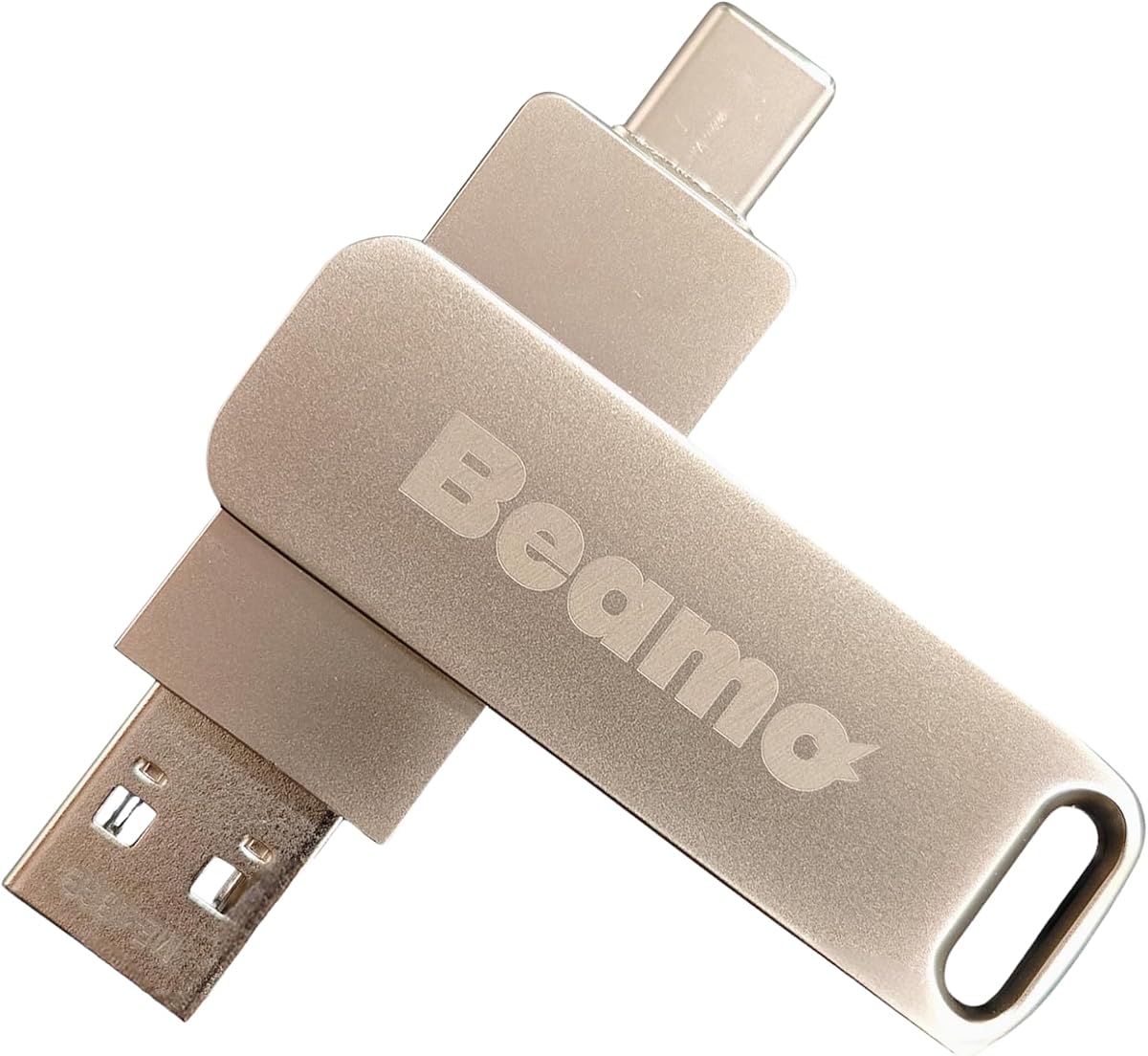
Beamo offers a dedicated Mint Cinnamon drive designed for installation and repair tasks. With a 4.3 rating, it provides a reliable way to evaluate or install Linux Mint on supported hardware.
We may earn a commission when you buy through this link, at no additional cost to you.
The live environment allows you to test Mint before committing to an installation. It is specifically built for x86-64 PCs, ensuring compatibility with most standard desktops and laptops.
Users must back up their data before installing since partitions can be erased. It also does not support ARM or Apple Silicon machines, so architecture verification is necessary before purchase.
This drive is excellent for users planning to switch to Mint or needing to troubleshoot existing systems. It is a practical tool for installation and recovery scenarios.
Ideal for troubleshooting PC issues without modifying the existing hard drive until ready.
Includes clear guidance for partitioning and installing to ensure a smooth transition process.
We may earn a commission when you buy through this link, at no additional cost to you.
This 3-in-1 drive offers flexibility with three versions of Linux Mint, including a 32-bit option for older computers. Its 4.1 rating highlights its utility for both new and legacy systems.
We may earn a commission when you buy through this link, at no additional cost to you.
You can always try Mint on the USB before installing. It supports both legacy BIOS and UEFI modes, making it versatile for various hardware generations. A printed user guide is included for support.
Secure Boot may need to be disabled for UEFI booting, which is a common requirement for Linux drives. The packaging does not include a box, which might matter for collectors or gifting.
If you have an older PC or want multiple Mint versions, this drive is a solid choice. It bridges the gap between modern and legacy hardware effectively.
The inclusion of 32-bit Mint makes it possible to run on older computers that lack 64-bit support.
You can evaluate different versions of Mint to find the one that fits your hardware best.
We may earn a commission when you buy through this link, at no additional cost to you.
This 16GB drive offers seven distributions including older ones like Windows XP and specialized tools like Clonezilla. With a 3.9 rating, it caters to specific use cases and older hardware.
We may earn a commission when you buy through this link, at no additional cost to you.
It includes privacy-focused Tails and rescue tools Clonezilla, which are valuable for maintenance. The USB 3.0 speed ensures reasonable performance, and video boot instructions help beginners navigate setup.
Windows XP is largely obsolete for modern security, so it may not be ideal for daily tasks. Some users might find the variety too broad compared to curated options.
For those needing legacy support or backup tools, this drive is unique. It serves well for specific technical tasks or educational purposes.
Clonezilla is included for disk cloning and backups, making it useful for system maintenance tasks.
Tails provides anonymous browsing, useful for privacy-conscious users needing secure portable access.
We may earn a commission when you buy through this link, at no additional cost to you.
This Linux Mint drive features a dual USB-A and C interface for broad device compatibility. It has a 4.2 rating for its ease of use and support for older PCs seeking modern performance.
We may earn a commission when you buy through this link, at no additional cost to you.
The drive is fully customizable, allowing you to add or replace ISOs easily. It runs without internet and includes office and media apps for immediate productivity. Premium flash chips ensure speed and longevity.
It focuses on Mint specifically, so it lacks multi-distro flexibility. Support response may vary though claims 24 hours, which is a consideration for urgent issues.
This option is great for those wanting a modern Mint experience across different ports. It is ideal for reviving older PCs and maintaining compatibility.
The inclusion of USB-C ensures it works with newer laptops and tablets without adapters.
You can run and install without internet, which is perfect for areas with limited connectivity.
We may earn a commission when you buy through this link, at no additional cost to you.
This drive offers three LTS versions of Ubuntu, ensuring stability and support. Rated 4.2, it includes Lubuntu for older systems, making it a versatile tool for Ubuntu users.
We may earn a commission when you buy through this link, at no additional cost to you.
It comes with common software like browsers and office tools. You can try the OS on USB before installing to your hard drive. The printed guide assists with setup and booting.
It focuses solely on the Ubuntu family, so you miss out on other distributions. The packaging is simple, without a retail box.
For those committed to Ubuntu, this provides the best support versions. It is a reliable option for stable and long-term Linux usage.
Long-term support versions ensure security updates and stability for professional and personal use.
Lubuntu offers a lightweight option for older hardware, ensuring smooth performance on slower devices.
We may earn a commission when you buy through this link, at no additional cost to you.
This Ubuntu drive includes both desktop and server installers, offering professional utility. It has a 4.1 rating for its comprehensive features and support for multiple architectures.
We may earn a commission when you buy through this link, at no additional cost to you.
It is fully customizable and works on most modern and legacy PCs. You can run it from the USB or install it permanently. It also supports ARM architectures, broadening device compatibility.
It is limited to Ubuntu, so if you want other distros, this isn't the choice. Boot settings must be configured in BIOS which can be a hurdle for new users.
For those managing servers or desktops, this drive covers both bases. It is a powerful tool for IT professionals and enthusiasts.
The server installer makes this ideal for hosting, networking, and advanced Linux administration tasks.
Support for amd64 and arm64 means it works on both standard PCs and supported ARM-based computers.
We may earn a commission when you buy through this link, at no additional cost to you.
Selecting the right bootable Linux USB drive involves considering compatibility, included distros, and hardware support. This guide outlines key factors to ensure you choose the perfect portable OS for your needs.
Consider how many operating systems you need. Some drives offer single distros for simplicity while others provide multiple options for flexibility. Multi-boot drives are ideal for testing various Linux versions without downloading ISOs separately.
Choose a drive that matches your exploration needs. If you are a beginner, a simpler option with fewer choices might be easier. For professionals, a multi-distro drive offers more utility.
Ensure the drive supports your system boot mode. Most modern computers use UEFI while older ones rely on Legacy BIOS. Some drives support both, making them more versatile across different hardware generations.
Always check that the drive matches your PC requirements. Compatibility avoids frustration during boot attempts.
Check your computer hardware before purchasing. Some drives support only x86-64 architectures while others include ARM support. If you have older hardware, a lighter option like Lubuntu might be beneficial for performance.
Verify architecture support to avoid incompatibility issues. Knowing your system details helps streamline selection.
Many drives come with pre-installed tools for office or media. These can save time if you need immediate productivity. Some also include specialized utilities like backup or partitioning tools for maintenance tasks.
Select a drive that includes the tools you need. This reduces setup time and enhances immediate usability.
Storage size affects how many files you can keep on the drive. While boot files are small, extra space helps for persistent data. Larger drives offer flexibility for backups or custom configurations.
Pick a capacity that fits your usage patterns. If you need to store files, opt for higher storage options.
Modern laptops often have USB-C ports while older PCs use USB-A. Dual connector drives ensure compatibility across devices. This feature eliminates the need for adapters when connecting to different systems.
Choose a drive with the right connectors. This ensures seamless connectivity with your devices.
Good documentation helps new users navigate boot menus. Look for drives with printed guides or online videos. Responsive customer support can solve boot issues quickly if problems arise.
Prioritize products with clear instructions. This reduces setup errors and improves user experience.
Distro versions change frequently. Check if the drive includes an update policy. Some sellers offer latest versions periodically ensuring compatibility with recent software.
A good update policy keeps your drive current. This ensures you have access to the latest features and security updates.
To use the drive, plug it into your PC and restart. Access the boot menu using the provided hot keys to select the USB option. Follow on-screen prompts to try or install the OS.
Avoid removing the drive while data is being written. Always safely eject it from the operating system to prevent corruption. This maintains the drive's integrity over time.
Store the drive in a protective case to avoid physical damage. Keep it in a cool and dry place. Proper care extends the lifespan and ensures consistent performance.
No, you can run most distributions in Live Mode directly from the USB without installing. This allows you to test the OS and compatibility without altering your hard drive. You can choose to install permanently later if you prefer.
Most standard USB drives do not support Apple Silicon or ARM-based Macs directly. You should check the product details for ARM architecture support. If unavailable, you may need a different boot method.
Often yes many Linux drives require disabling Secure Boot in BIOS settings. This ensures compatibility with the bootloader used by the Linux distribution. Check your specific drive instructions for boot requirements.
Some sellers provide updates but typically the ISOs are fixed. You can always download new versions and create your own bootable drives. For convenience, check if the product offers update support.
It depends on the drive type. Some privacy-focused options like Tails include encryption by default. Others might require manual setup to secure sensitive data stored on the drive.
Quality flash drives typically last several years depending on usage. Avoid constant read/write cycles and protect them from physical damage. Proper storage and handling help extend their lifespan.
Our top picks include versatile options like the 16-in-1 USB and stable single-distros like Mint and Debian. Each offers unique strengths for different user needs and hardware compatibility.
Prioritize your needs such as multi-boot flexibility or specific distro support. Consider boot mode compatibility and hardware requirements to ensure seamless usage on your devices.
Always check current availability and specifications before purchase. Product details can change over time so verify the latest updates directly with the seller.